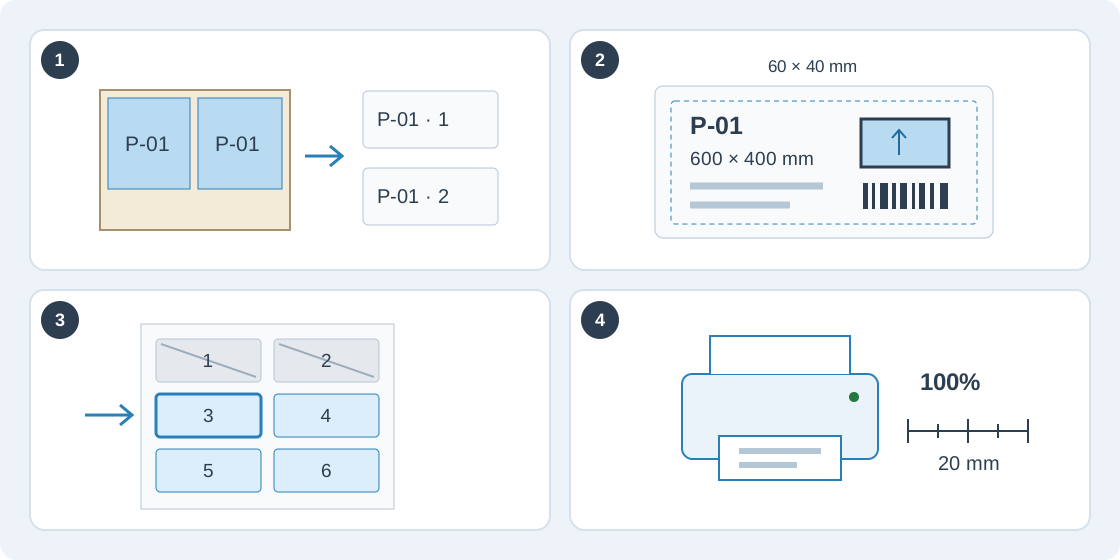
1Open labels from the right saved plan
In the cutting workspace, open Results → Export → Part labels for a stored optimization or finalized custom run. Sheet labels in the canvas toolbar preselects the current sheet; Selected part label preselects the chosen placement. Check the order and run before continuing.
Part dimensions, edging and identity come from that run's saved data, rather than later edits to the parts table. If the run is no longer the production plan, explicitly confirm using the historical run. Account → Part labels → Manage label templates opens the designer and stock settings without an order.
2Choose a template and matching label stock
Start with a Compact, Workshop or Traceability template and matching sheet or roll format. Built-in presets include A4 L7160, Letter 5160, 60 × 40 mm and 100 × 50 mm labels. In Label stock, check paper and label dimensions, margins, gaps, rows, columns and safe inset against your stationery. Changing stock does not resize the design; use Create resized template copy and inspect the result.
In Label designer, add text, order/part fields, blank or finished sizes, material, edging/grain diagrams, QR, Code 128 or a PNG/JPEG logo. Drag or resize elements, enter positions in mm and use undo/redo. Check an actual part and the long-text sample for fit. Save as copy preserves the original; built-in designs are copied on save. Saved templates and stock formats belong to your account and can be used on other devices.
3Select physical copies and prepare the batch
Filter by material or sheet, search by code/name, then select matching parts or individual copies. Equal part codes do not merge physical copies. Labels per part adds extra labels with the same identity; it does not change the order quantity.
Choose sheet/placement order, part-code order or saw completion order. Saw order needs a saved saw plan for every selected sheet and uses the sequence strategy and reference corner. For a partly used label sheet, choose the first unused slot in the number field or grid; this skips positions only on the first page. Sheet separators also consume label positions.
Choose Prepare label preview and check counts and every page. Preparation refreshes the run data and then freezes the batch's data, design, language and settings. Prepare again after changes. Split selections exceeding 10,000 labels, including extra copies and separators.
4Calibrate, print or save PDF at actual size
Under Printer setup and calibration, choose the printer's DPI and adjust horizontal/vertical offsets. Prepare test sheet / label creates TEST labels and a 20 mm ruler. Print at Actual size / 100%, measure the ruler and alignment; if later rows drift, check stock spacing and driver scaling. Calibration is saved only on this workstation for your account and stock format.
For the production batch, use Print / Save PDF with matching paper dimensions and browser headers/footers turned off. A roll uses one page per label face; set liner gaps and sensing in the printer driver. Fix text, missing-field or code-fit errors before printing. Choose Save as PDF in the browser dialog to create a file. Label printing uses the saved plan without reoptimizing or consuming export allowance.