1Choose blank or finished dimensions
Input dimensions tells the Workstation what the width and height in the parts table mean. Cutting blank (blank, the default) uses them as the size before edge processing and calculates the finished size. Finished part (finished) uses them as the final size and calculates the cutting blank. Changing the mode keeps the entered numbers, so check both sizes in the preview. The optimizer packs the calculated blank.
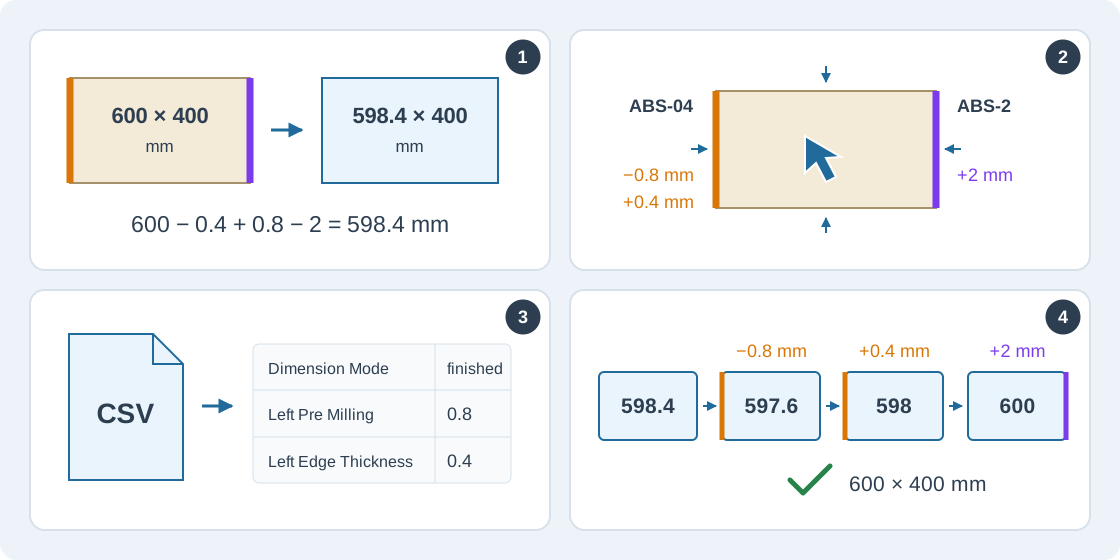
For each processed side, finished size = blank size − pre-milling removal + band thickness. Left/right change width; top/bottom change height. A 600 × 400 mm finished part with 0.8 mm removed and a 0.4 mm band on the left, plus a direct 2 mm band on the right, needs a 598.4 × 400 mm blank: 600 − 0.4 + 0.8 − 2 = 598.4. Input dimensions use whole mm; edge thickness, removal and machine limits allow up to three decimal places in mm.
2Set edges when entering parts manually
In Parts, add a row with dimensions, quantity and material, then click its Edge banding cell to open Edge processing. If the column is hidden, show it with the column selector. Choose Input dimensions, then select Top, Right, Bottom or Left. These names always refer to the original part before layout rotation.
Choose No processing for an untreated side, Band directly for banding without milling, or Pre-mill then band to remove material first. Select From catalog to copy a band's code and thickness, or enter the band code/name and a positive thickness yourself. Pre-mill then band also needs a positive Pre-milling removal. Repeat for each side; Copy this side to all edges replaces all four side settings. Review both sizes and resolve errors, then choose Save.
3Import edge settings from CSV
Open Import CSV and choose Download CSV template / example for the full set of fields. Replace its example rows, keeping the English column headers. Width and Height are required; Quantity defaults to 1. Use a Material Code from your order, or select a default material when it is omitted. Dimension Mode accepts blank (default) or finished.
Each side has four fields: for example, Left Edge Band, Left Edge Thickness, Left Pre Milling and Left Edge Method. Replace Left with Top, Right or Bottom for other sides. Methods are none, band and pre_mill_band. If the method is omitted, positive milling selects pre_mill_band; otherwise a code or positive thickness selects band. Empty sides remain unprocessed. An omitted thickness is copied from a matching catalog code; an unknown code needs an explicit positive thickness. An explicit thickness overrides the catalog.
The sample below matches the 600 × 400 mm finished part above. Replace MAT-18 with your material code. Choose the file, confirm the header and column mapping, and expand advanced mapping for milling and methods. The selected import unit affects only Width and Height; all edge settings stay in mm. Check both sizes and the edge diagram before confirming. Import appends accepted rows, so importing the file twice creates duplicates.
Material Code,Width,Height,Quantity,Dimension Mode,Left Edge Band,Left Edge Thickness,Left Pre Milling,Left Edge Method,Right Edge Band,Right Edge Thickness,Right Edge Method,Processing Order
MAT-18,600,400,1,finished,ABS-04,0.4,0.8,pre_mill_band,ABS-2,2,band,left top right bottom4Check machine limits, pass order and results
Expand Machine minimums and pass order in the manual editor. Enter your machine's minimum feed length (the edge being processed) and minimum cross size (the dimension across it), separately for banding and pre-milling. Zero disables a limit. Move sides with the arrows to match production; unused sides are skipped. Each pass is checked using the dimensions left by earlier passes, including the size after milling.
For CSV, advanced mapping includes Banding Min Length, Banding Min Cross Size, Pre Milling Min Length, Pre Milling Min Cross Size and Processing Order. List all four sides once, for example left top right bottom. This processes the left side before the right as illustrated. Use Validate without importing to check a file first. Invalid rows show their row and field and are skipped; fix them and check the accepted count.
Run optimization after changing edge settings. On the layout, purple edges mean direct banding and orange edges mean pre-mill then band; hover for the original side, band and method. An older saved run keeps its previous settings. The manufacturing section of CSV exports includes blank/finished sizes, original/layout sides, methods, order and machine limits.