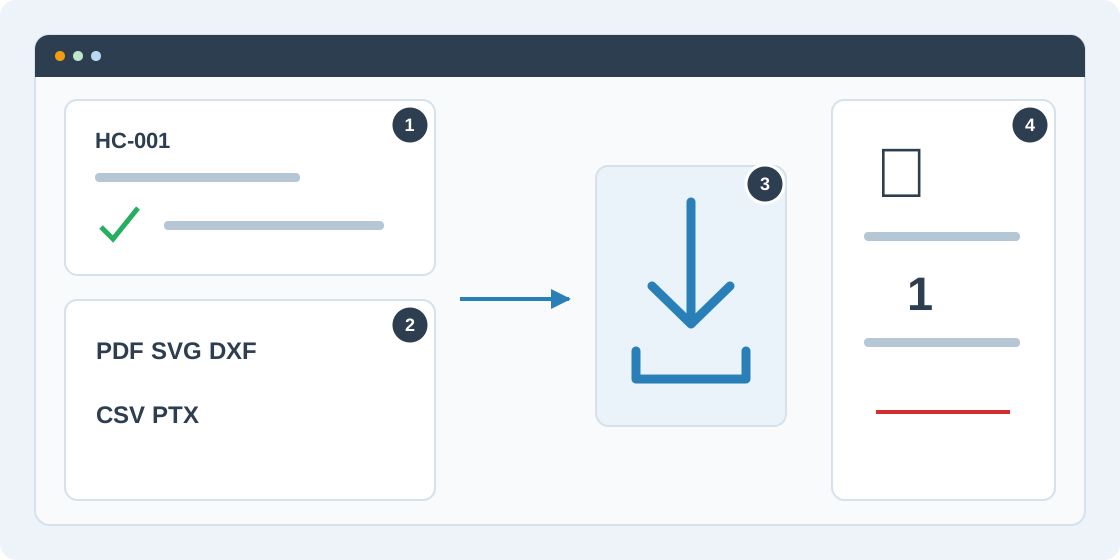
1Check the export source
Open Results, then Export. Select a saved optimized run or finalized custom run and check its machine, settings and source. Finalize a custom draft before exporting production files. Exports use the selected run’s stored placements, so review that layout before downloading.
2Choose the format
Use PDF for a printable cutting map, SVG for a vector drawing, DXF for CAD, and CSV for a parts list. Use PTX only when the saw workflow and layout support it. Check compatibility with the software or machine that will receive the file.
3Generate and download
Choose the desired format and wait for generation. Use the file links shown in export history to download the results; a job with several materials can produce several files. Check dimensions, materials and the selected plan before handing files to production.
4Allow for request limits
PDF cutting-map, SVG, DXF, CSV and PTX exports use the stored result without rerunning optimization. Subscription and daily-request checks still apply. Print / PDF for the saw step list uses the saved plan in your browser without spending a request. If an export allowance is exhausted, follow the limit message before retrying. Export history identifies the source run.