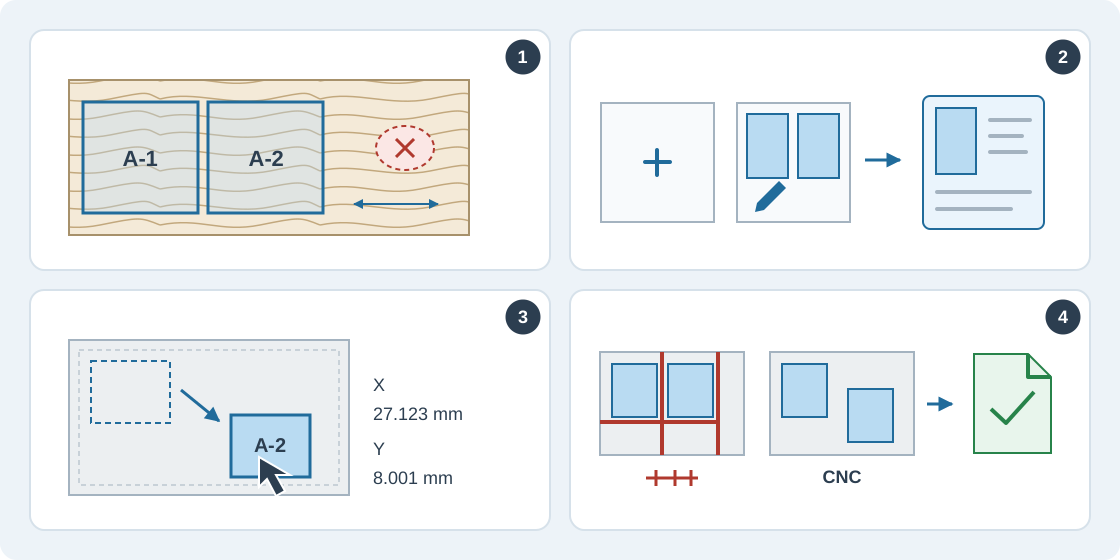
1Decide when manual placement helps
Use a manual layout to align decorative patterns on neighbouring fronts, keep parts away from a defect on a particular sheet, or arrange strips for easier handling on your saw. Measure the pattern or defect position on the physical sheet first.
For an urgent job, create an order containing only the few parts and copies you need now. If one cutting list combines several jobs, include the source order in each part code and place each group together. The custom layout is saved in the current order; it does not merge or link separate orders automatically.
2Start empty or edit an optimization result
Sign in, open the order’s cutting workspace and enter its materials, stock sheets, parts and quantities in Settings and Parts. Choose Create custom cutting layout in the toolbar to start from scratch. In the custom panel, choose stock and Add sheet, then select a remaining part and click the sheet or drag it onto the sheet. Add further sheets when needed.
To modify an existing optimization, select its saved run in Results and choose Edit result. This opens a separate draft with the saved placements and inputs; the original result stays available. Check Machine, Blade kerf or Cutting clearance, and Edge trim in the custom panel before arranging parts.
3Position parts precisely
Drag a placed part, or select it and enter X and Y in millimetres, then choose Apply position. Coordinates start at the top-left of the usable area, inside the edge trim, and support 0.001 mm precision. Use Snap to edges and Grid spacing as needed; switch snapping off when placing a part at a measured pattern or defect offset. Choose another sheet in the position controls to transfer a part.
Turn 90° is available only when rotation is allowed and no part or sheet grain setting locks orientation. Grain-constrained parts keep their entered orientation. The editor uses rectangular cutting blanks, including edge-processing compensation. Use Undo, Redo or Return to palette to revise the arrangement.
4Check, save and finalize the layout
Every accepted edit is checked for sheet bounds, cutting gaps, matching material, available stock and requested part copies. Panel saw also requires a verified sequence of straight cuts passing completely through the piece currently being cut. Arrange parts so this is possible. CNC allows rectangular arrangements without guillotine cuts; its draft canvas shows parts and unused space without saw passes.
Accepted edits save automatically. Check Saved before leaving, and reopen unfinished work from Saved drafts. An invalid move leaves the last accepted layout intact. Resolve save errors before continuing. After changing order inputs, use Update inputs and review the effect on existing placements.
Place every requested copy, then choose Finalize layout. The finalized custom run becomes the order’s production plan. In Results, select it for exports and, where a saw plan exists, cutting guidance and printing. These outputs use the stored placements. Check PTX compatibility separately before using that format.