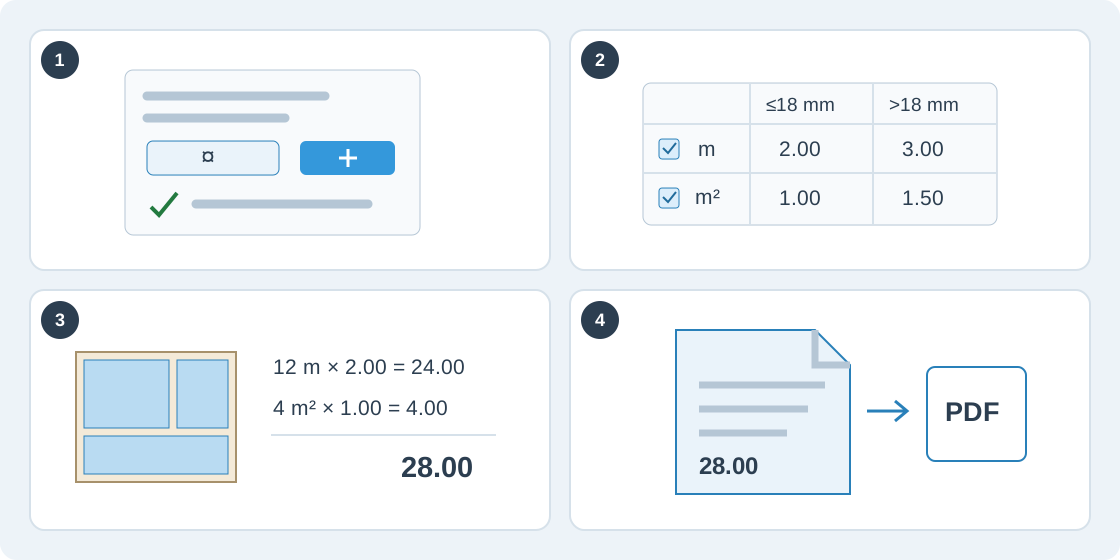
1Create a price list
Open Account → Service pricing and choose New price list. Enter a name and currency. The currency is fixed after creation; create another list if you need a different currency. Your first list becomes the default, and each order can choose another list.
A new list starts with all charges disabled and zero rates. Enable and configure the services you sell, then save explicitly. You can duplicate a list to reuse its settings in the same currency, or make another list the default.
2Choose charges, units and material rates
Combine charges per metre of cut, metre of part perimeter, cut, square metre, part or machine time. Each enabled charge adds to the total; select whether it applies to saw, CNC or both. For per-cut pricing, set the first-cut and further-cut rates and choose whether the first-cut rate applies once per sheet or order.
Enter rates for each thickness band. A material uses the first band whose upper limit includes its thickness. Material overrides replace selected rates for a catalog material; empty fields retain the band rate. Part sizes selects cutting blank or finished dimensions for perimeters and size categories. Area charges have their own sheet/blank/finished basis; check whether catalog offcut sheets are included.
For machine time, enter the hourly rate, feed and handling times, billing step and optional minimum. Review the CNC warning before enabling both cut-length and blank-perimeter charges: they bill the same router path twice.
3Preview a plan and check its total
In the price-list editor, choose a saved plan under Preview to test unsaved rates. Check quantities, rates and line amounts, then the minimum order charge, tax mode and final rounding. Save the list when it is ready. A preview does not save your edits.
In the cutting workspace's Results, Service price shows the selected run's price. Finalize a custom layout before pricing it. On the order page, select the price list and review the production plan's breakdown. After production, record and save actual machine time to replace the estimate. Time belonging to an earlier plan is marked outdated and ignored until recorded for the current plan.
4Create a quote and save a PDF
On the order page, choose Create quote after checking the production plan and price list. Resolve an Incomplete price first, for example a missing feed rate needed to estimate machine time.
The quote freezes its price and price-list settings. Later list edits or deletion do not change it. If the plan or parts change, the old quote is marked outdated; review the new price and create a new quote. Open a saved quote, choose Print or save as PDF, then select your printer or Save as PDF in the browser dialog. Prices are kept out of manufacturing exports such as cutting-map PDF, CSV, DXF, SVG and PTX.