1Create an order
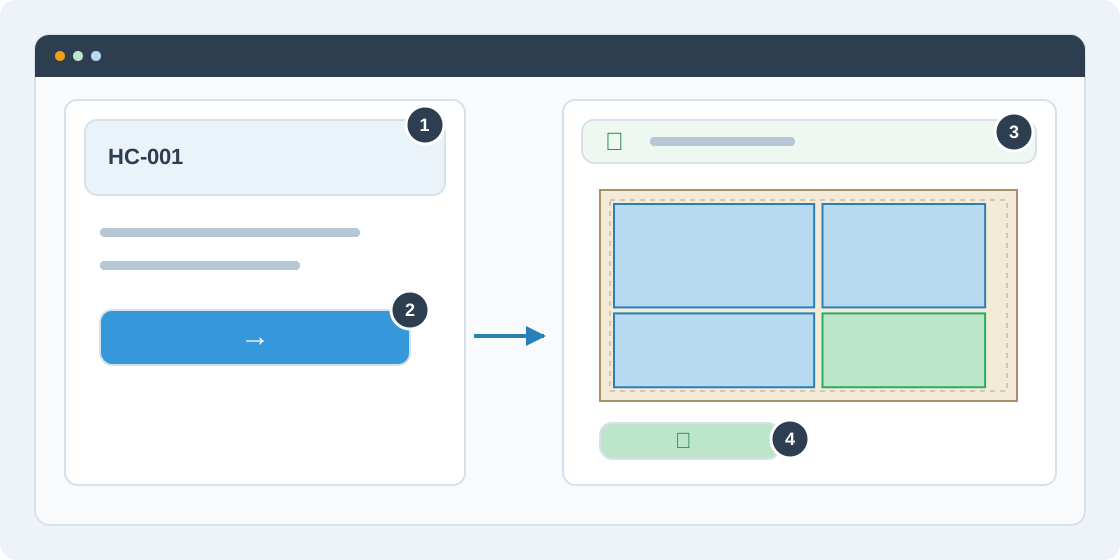
Sign in and open Workstation. Choose New order and enter a unique order number, such as HC-001. Add the customer, priority, deadline and tags under Add details if needed; you can fill them in later.
2Open the cutting workspace
Open the order and choose its cutting workspace. Settings contains materials, stock sheets and machine options; Parts contains your cutting list; Results contains layouts, saved runs and exports. Import CSV brings an existing parts list into this order.
3Check autosave
Changes to the order definition save automatically. Watch the saving indicator in the workspace header and wait for confirmation before leaving. If saving fails, check the displayed error and retry; an unsaved change is not a saved result.
4Track the job
Update the order status as work progresses: Draft, Validating, Optimizing, Ready for production and Completed. Use the Workstation overview for deadlines and orders needing attention. The order history helps you review changes.